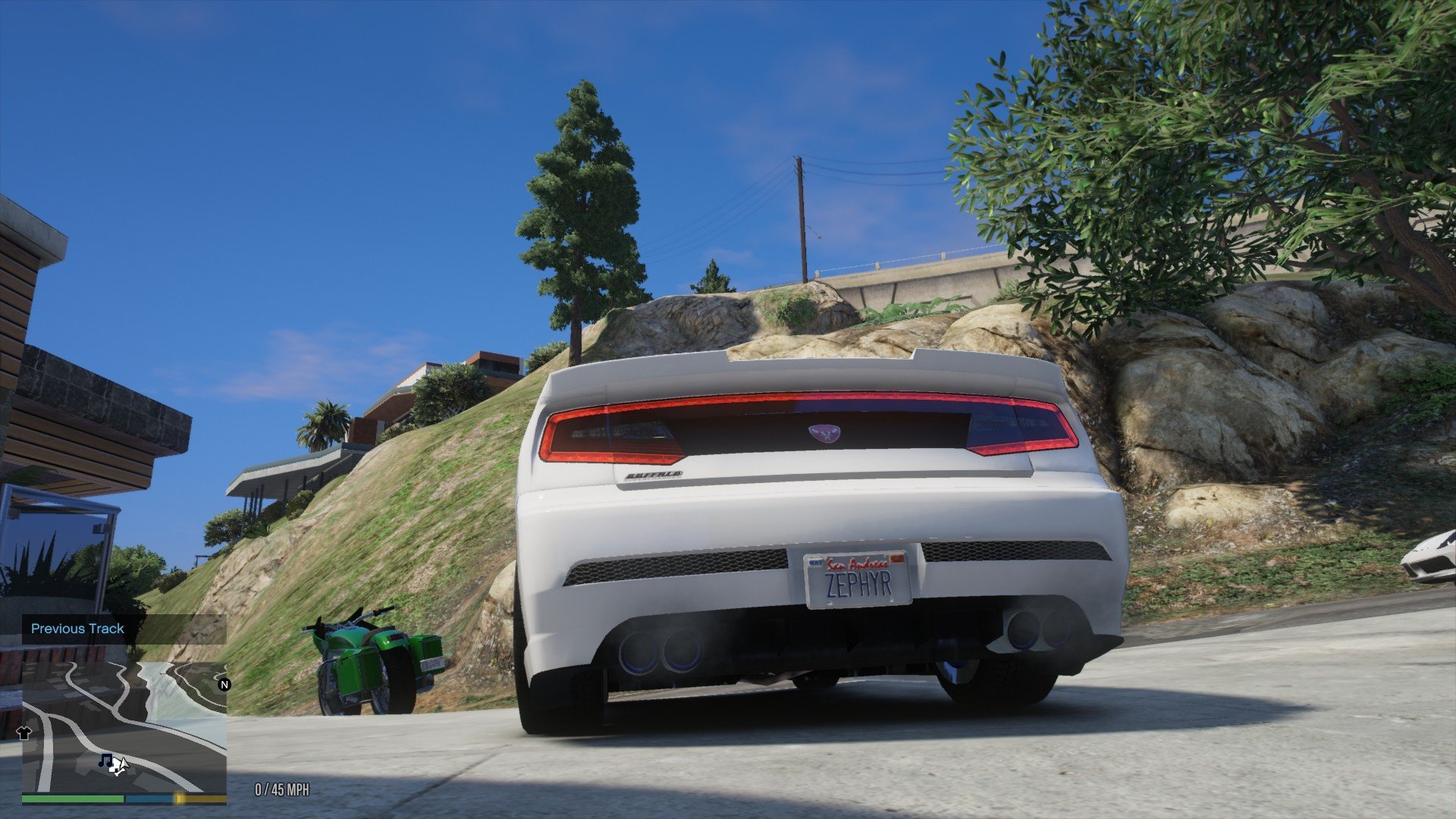
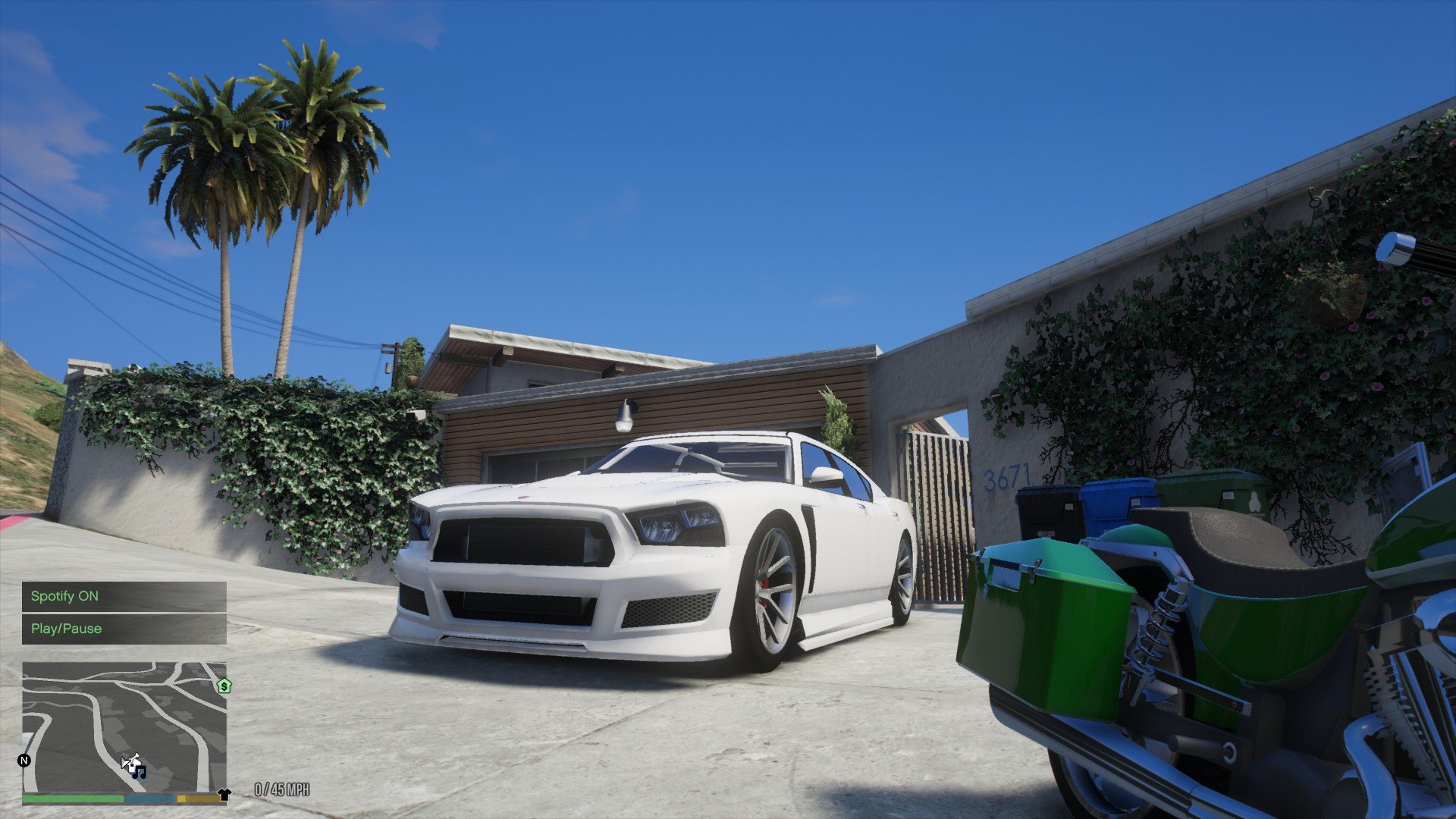
Bring your Spotify music into GTA V and control playback directly in-game!
Features:
– Play / Pause Spotify (F9)
– Next Track (NumPad +)
– Previous Track (NumPad -)
– Auto-connects to Spotify if it’s running
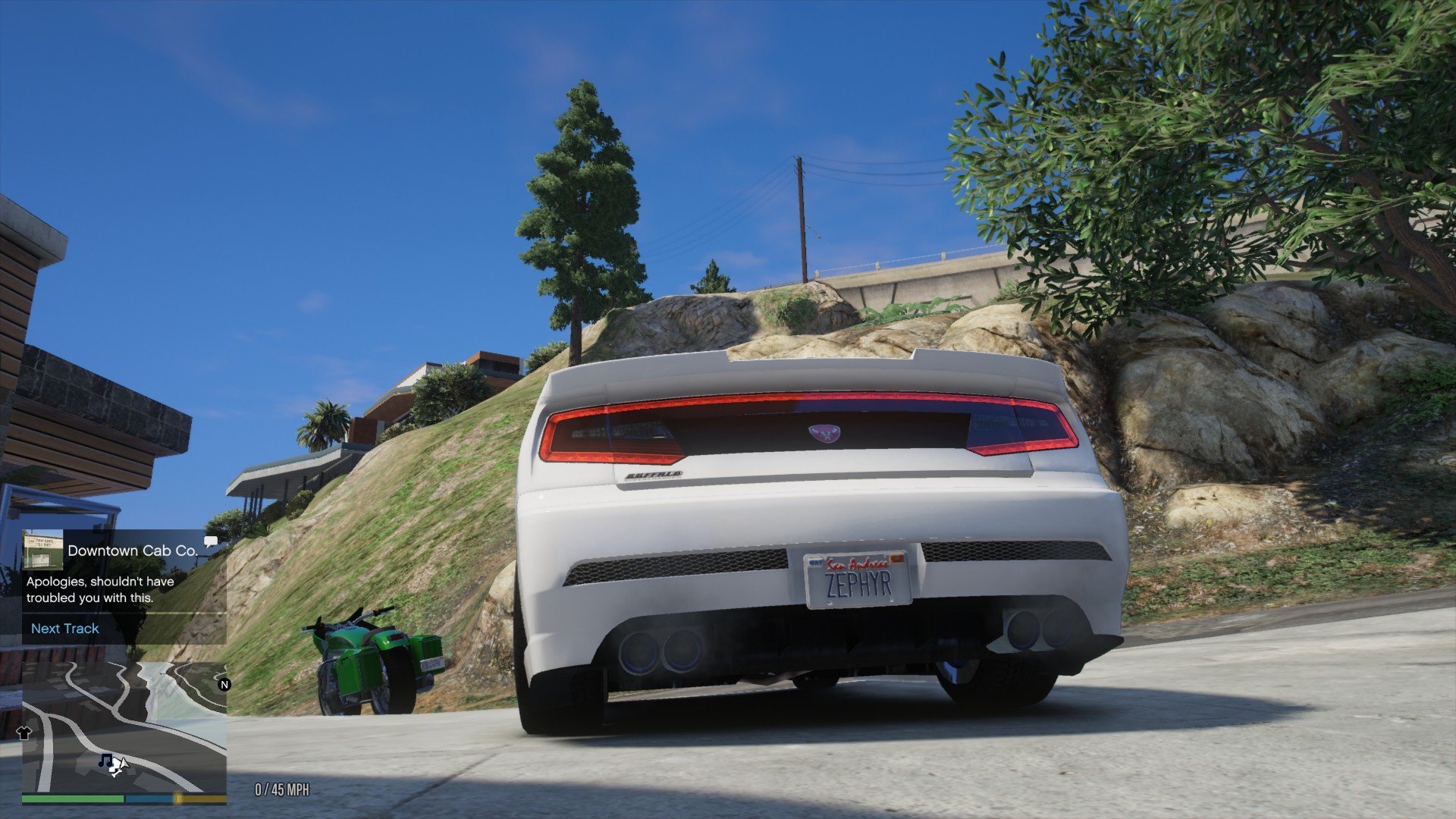
– In-game notifications for feedback
Installation:
Requirements:
– ScriptHookV
– ScriptHookVDotNet3
– .NET Framework 4.8+
Steps:
1. Ensure you have a ‘scripts’ folder in your GTA V directory:
Example: C:\Program Files\Rockstar Games\Grand Theft Auto V\scripts\
2. Copy ‘SpotifyRadio.dll’ into the ‘scripts’ folder.
3. Run Spotify on your PC before launching GTA V.
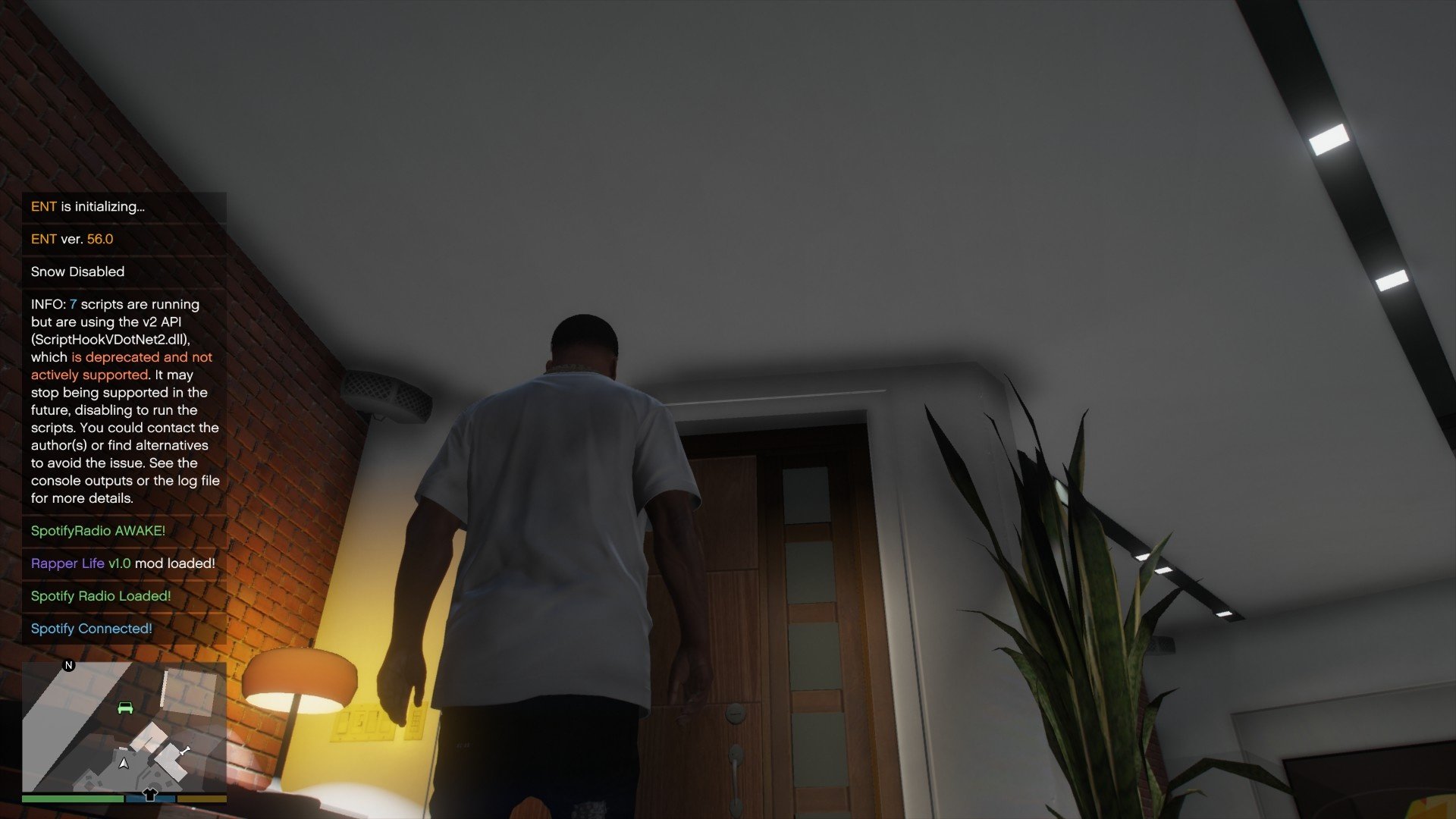
4. Launch GTA V (Story Mode). You should see:
“Spotify Radio Loaded!”
“Spotify Connected!”
Controls:
| Key | Action |
| F9 | Play / Pause |
| NumPad + | Next Track |
| NumPad – | Previous Track |
Changelog:
v1.2 –
> Fixed an issue where the Song Title would not appear in notifications.
> Minor code optimizations.
> Fixed compilation errors caused by unsupported Windows audio interfaces.
> Improved Spotify track title detection logic.
> Prevented false “Paused” notifications while playing.
> Reduced notification spam (updates only on track change).
> Improved stability when Spotify is minimized.
> Optimized script tick interval for better performance.
> General stability improvements.
v1.1 –
> Initial public release.
> Play / Pause support.
> Next / Previous track controls.
> Volume Up / Down controls.
> Vehicle-only activation logic.
>INI-configurable hotkeys.
> Lightweight implementation.
Credits:
Poppa Jitt Official
Download mod
| File | File size |
|---|---|
 Spotify Radio – Update 1.2
 | 6 KB |

![Spotify Radio [.NET] 1.0.3](https://gta5mod.net/wp-content/uploads/2020/11/Spotify-Radio-150x150.jpg "Spotify Radio [.NET] 1.0.3")

![Apple Music Radio with Cider [.NET] V1.0](https://gta5mod.net/wp-content/uploads/2024/08/Apple-Music-Radio-with-Cider-150x150.webp "Apple Music Radio with Cider [.NET] V1.0")