Upfront honesty: this was made with the help of AI. I’m normally against AI slop, especially when it isn’t disclosed, so I want to be fully transparent that AI was used here. Used properly though, I think it’s a genuinely useful tool, and this mod is the result of that.
Why I made it
I wanted to compare different engine sounds in-game, live – swapping between them on the same car back-to-back, and assigning them to whatever vehicles I felt suited them – without restarting or editing files every time. There wasn’t a clean way to do it (menus like Menyoo won’t let you type an arbitrary audio name), so this fills that gap.
What it does
Swap any vehicle’s engine sound on the fly from an in-car menu:
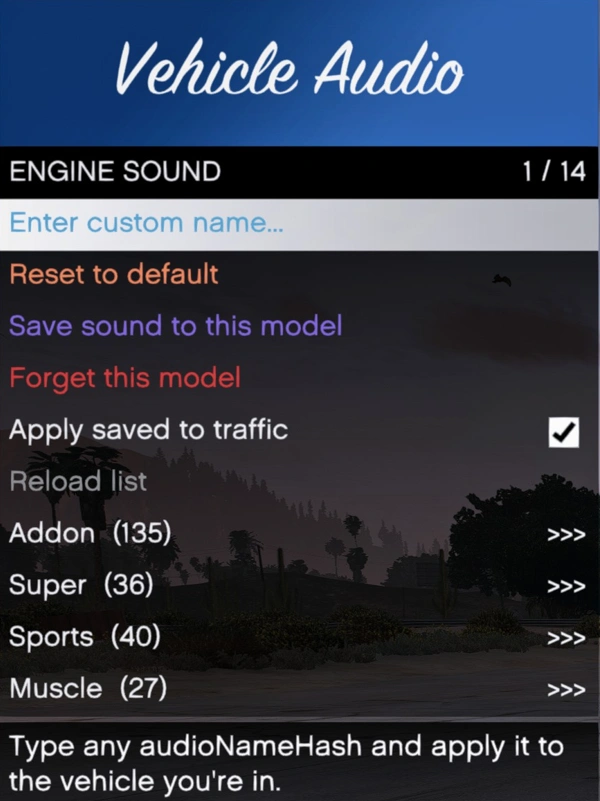
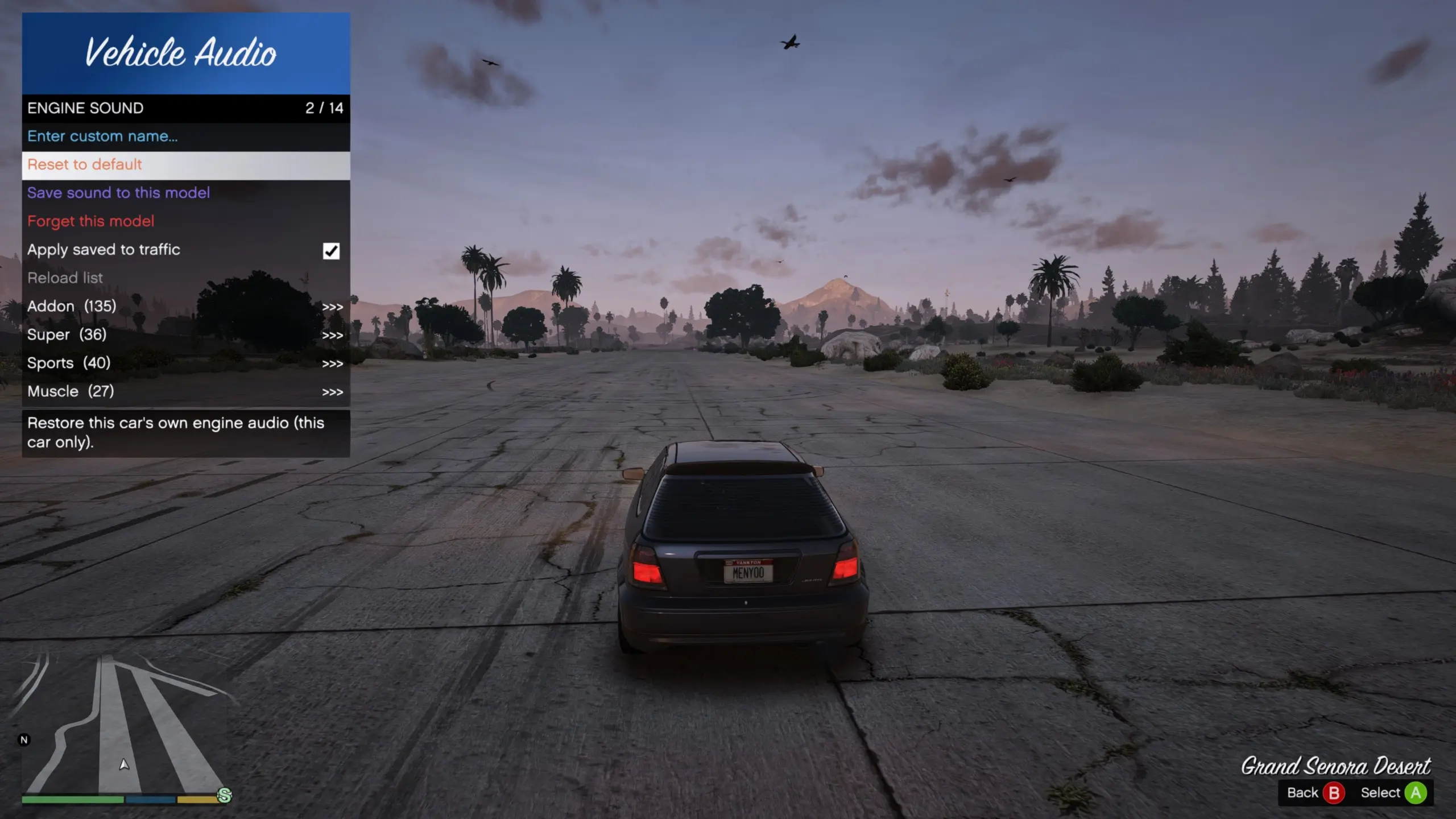
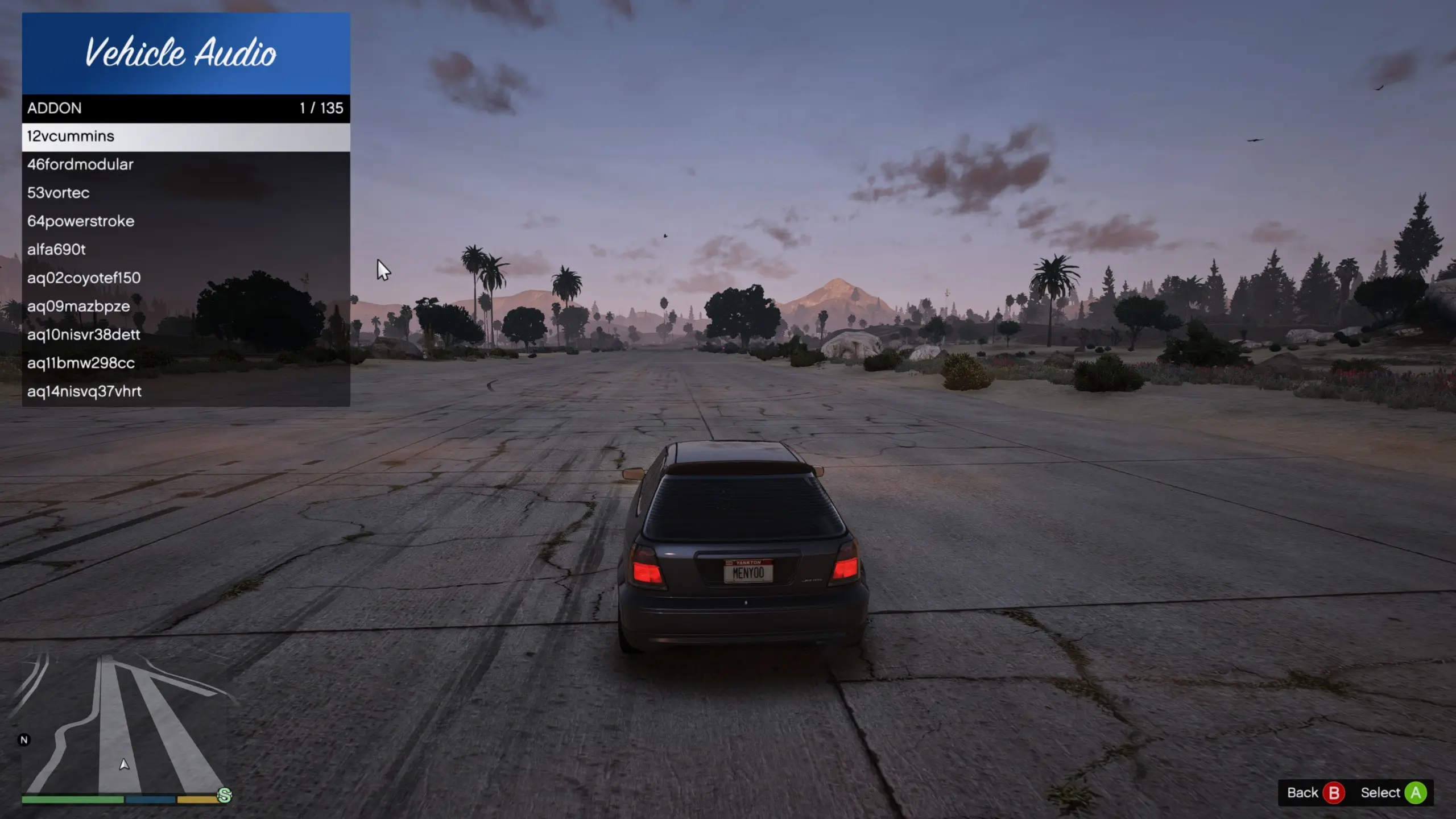
Press 7 for a menu of engine sounds, grouped by category
Pick one and it applies to your current car instantly, and the menu stays open so you can compare them back to back
Type a custom audio name to try anything, including addon or custom sound packs
Save a sound to a make and model, so every car of that model then uses it automatically (optionally on passing traffic too)
Press 8 to reset to the stock sound
Adding your own engine sounds
Any addon engine-sound pack can show up in the menu. Two steps:
Install the sound pack like any normal addon. Add it as a DLC with OpenIV (drop its dlc.rpf into your dlcpacks folder and add its line to dlclist.xml), exactly as the pack tells you to. If the sound already plays on a car, this part is done.
Add the sound name to VehicleAudioSounds.ini (in your scripts folder), one name per line under the Addon list at the top. Use the audio name (audioNameHash). This is usually the same as the pack folder name, but not always. To be sure, open the pack’s x64 audio folder and find the file ending in sounds.dat54.rel (or game.dat151.rel) – the text in front of that part is the name. For example, a pack whose file begins with brabus850 is added as the line brabus850.
Then load it in-game: press 7, choose Reload list, and your sound shows up in the menu ready to pick. No restart needed.
Running lots of sound packs (over 100)
If you install more than 100 or so separate audio DLCs, the game starts failing to load some of them and they just go silent. If you are going that big, combine your sound packs into a single DLC – one combined pack loads fine where a hundred or more separate ones choke.
Requirements
ScriptHookV and ScriptHookVDotNet 3
LemonUI (SHVDN3)
Install
Drop the .dll and both .ini files into your scripts folder, then add your own sounds to VehicleAudioSounds.ini (details above and in the README).
Controls
7 – open menu
8 – reset engine sound to default
Credits:
SlyZilla
Download mod
| File | File size |
|---|---|
 VehicleAudioChanger_Release
 | 10 KB |
![Custom Vehicle Engine Sounds Pack [Add-On / FiveM | Sounds] v3.6 SP](https://gta5mod.net/wp-content/uploads/2021/08/Custom-Vehicle-Engine-Sounds-Pack-150x150.jpg "Custom Vehicle Engine Sounds Pack [Add-On / FiveM | Sounds] v3.8")
![Custom Vehicle Engine Sounds [Add-On OIV / FiveM | Sounds] 1.7SP DLC](https://gta5mod.net/wp-content/uploads/2021/04/Custom-Vehicle-Engine-Sounds-150x150.png "Custom Vehicle Engine Sounds [Add-On OIV / FiveM | Sounds] 1.7SP DLC")
![Custom Aircraft Engine Sounds [OIV + Add-On + Replace SP / FiveM Resource | Sounds] 1.3SP DLC](https://gta5mod.net/wp-content/uploads/2021/03/Custom-Aircraft-Engine-Sounds-150x150.png "Custom Aircraft Engine Sounds [OIV Add-On + Replace / FiveM | Sounds] 1.4")