This Guide explains How To Stream Custom Clothing on your FiveM Server | How To Add Clothing
Streaming custom clothing to a FiveM server can enhance the player experience and add depth to your server’s customization options. This tutorial will guide you through the process step-by-step.
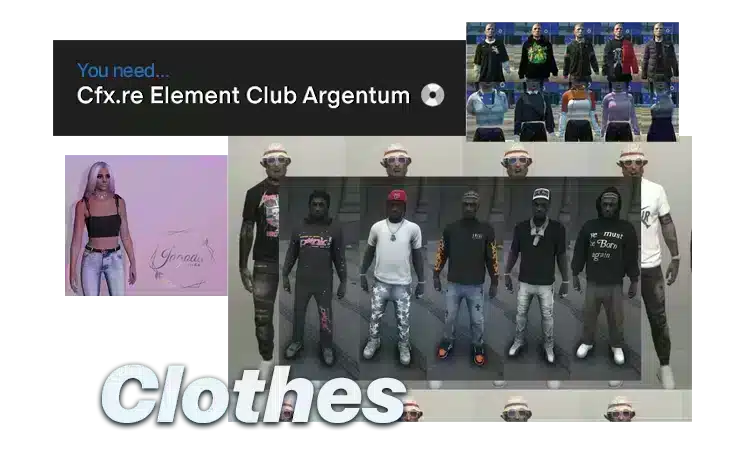
Important: To use custom clothing your server needs a Patreon license installed (at least Argentum)
FiveM Server – How To Add Clothing
Adding custom clothing to your FiveM server isn’t hard! We will explain how to do it step by step, making the process simple and straightforward. Here’s a comprehensive guide to help you get started:
Step 1: Download some FiveM Clothing Resources
You can’t install something you don’t have: You’ll need to download the custom clothing resources that you want to stream. These resources typically come in the form of .zip or .rar files
Step 2: Copy Them to the server/resources Folder
Once you have downloaded the custom clothing resources, follow these steps to copy them to your FiveM server:
- Locate the directory where your FiveM server files are stored.
- Navigate to the
resourcesfolder within the server directory. - Extract the downloaded clothing resources if they are compressed (e.g., .zip or .rar files).
- Copy the extracted folders containing the clothing resources into the
resourcesfolder.
Step 3: Change the Server Configuration
Next, you’ll need to configure your FiveM server to ensure that it loads the custom clothing resources properly. Follow these steps:
- Locate the
server.cfgfile in your FiveM server directory. - Open the
server.cfgfile using a text editor. - Add the names of the clothing resources you copied to the
resourcessection of theserver.cfgfile. - Save the
server.cfgfile after making the necessary changes.
Step 4: Restart the FiveM Server
After you have added the clothing resources to the server configuration, you’ll need to restart your FiveM server for the changes to take effect.
- Close the server console if it’s running.
- Restart the FiveM server according to your preferred method (e.g., using a server management tool or running a command in the terminal/console).
Step 5: Test the Clothing in-Game
Once the server has restarted, launch FiveM and join your server to test the custom clothing.
- Open FiveM and navigate to the server browser.
- Find your server in the list and join it.
- Access the clothing customization menu in-game and verify that the custom clothing items are available for selection.
Credits:
![Lara Croft Custom Casual [Add-On Stream Ped] v1.5](https://gta5mod.net/wp-content/uploads/2021/03/Lara-Croft-Custom-Casual-150x150.jpg "Lara Croft Custom Casual [Add-On Stream Ped] v1.5a")
![[How-To] Stream clothes and props as addons, for MP Freemode models](https://gta5mod.net/wp-content/uploads/2023/01/Stream-clothes-and-props-as-addons-150x150.jpg "[How-To] Stream clothes and props as addons, for MP Freemode models")
![[How-to] Stream custom clothes](https://gta5mod.net/wp-content/uploads/2023/02/Stream-custom-clothes-150x150.jpg "[How-to] Stream custom clothes")